





When logging into the new Washington Trust Digital Banking site for the first time, you’ll need to log in using either:
- A US Based Phone Number OR
- Contact Washington Trust for assistance. We will help you receive a code to login. Following the update to our Digital Banking service, you will no longer be able to use an International Phone Number or Email Address to receive a One Time Passcode. Authentication Apps are available to use as an alternative to US Based Phone Numbers. Click here to learn more.
Actions to take now:
Confirm your current contact Phone Numbers within Online Banking by 3/18/2026.
- Website:
- Access My Settings in the upper right corner on the page
- Within Security Options, review the listed phone numbers to ensure they are current and valid.
- Mobile:
- Tap More and then Tap the gear icon at the upper right corner
- Tap My Settings
- Within Security Options, review the listed phone numbers to ensure they are current and valid.
- If you have a US Based Phone Number listed within your Security Options and you have access to obtain a One Time Passcode sent via Text or Voice Call to authenticate yourself at login, no further action is needed.
- If you do not have at least one accessible US Based Phone Number listed within your current Security Options:
- But have a US Based Phone Number you can add to receive a One Time Passcode via Text or Voice Call – please do so before 3/18/2026 to ensure you will be able to login successfully.
- And you do not have access to a US Based Phone Number, we will be here to support you at first login. Please contact us after 3/25/2026 at 401-348-1200.
Following the launch of Digital Banking, Washington Trust will support One Time Passcodes received through US Based Telephone Call and Text Message or use of an Authenticator App.
An Authenticator App is a mobile app (software tool) that can be used to enhance online security by generating a secure One Time Passcode (OTP) on a temporary basis.
When logging in from a computer or phone that is not recognized, Washington Trust requires an additional verification step where a code is sent to verify your identity. In the past, you may have received this code via phone call, text message or email.
With an Authenticator App:
- You’ll open the Authenticator App and once set up, note the code associated with the entry for “Washington Trust”.
- Remember or Cop the code and return to your Washington Trust Mobile app to enter.
- You’ll then be successfully logged in and your device will be registered for future use.
Common Authenticator apps include Google, Microsoft, Authy and Duo Mobile. You can take a look at your device’s App Store to find available apps. As always, we recommend doing your research with reputable sources before sharing or entering your personal information into any apps or services.
To enable an Authenticator, you’ll need to complete your first login. Start by clicking the forgot password icon on our login page. Follow the prompts to complete a password reset using your current username.
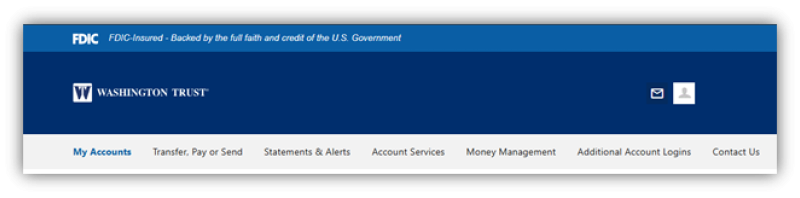
Once logged in, select the Profile icon in the upper right (beside the envelope), selecting Settings from the menu presented.
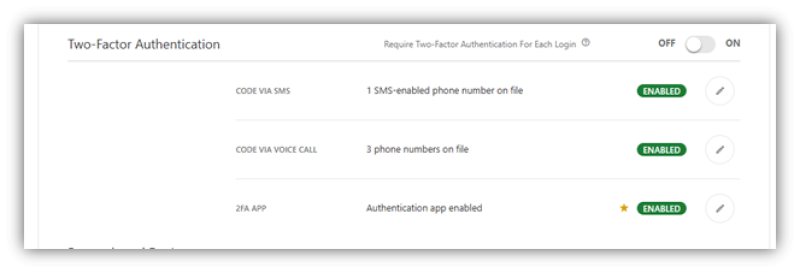
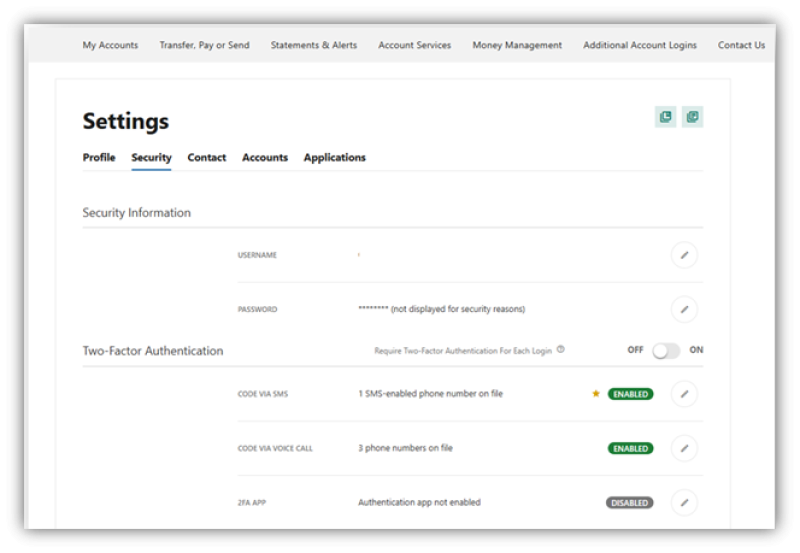
Select Security from the tabs along the top. Within the screen, note the 2FA App is disabled. Click the Pencil icon to enable.
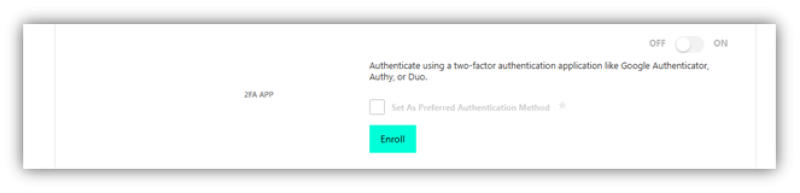
Click Enroll.
Open the Authenticator App and either Scan the QR code within the available option or enter the code on screen within the app.
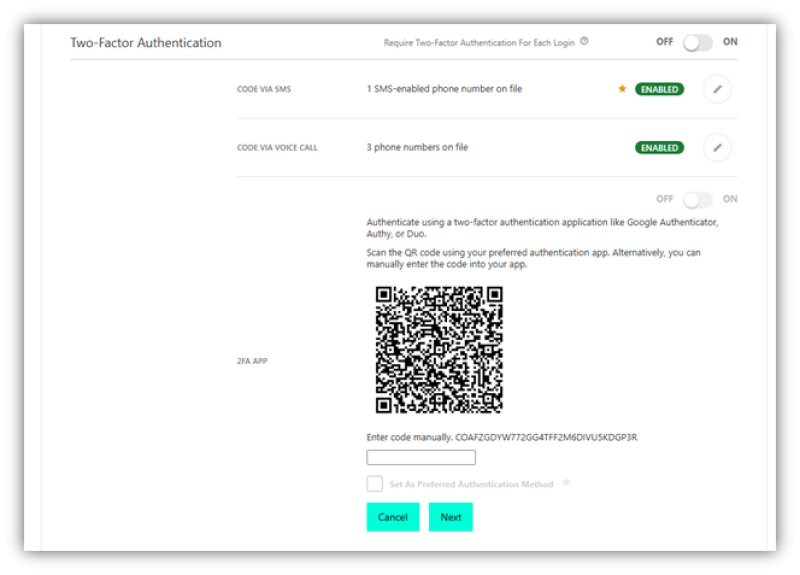
A six-digit code will be presented on screen associated with your new profile referenced as Washington Trust: Your Username. Enter the code in the box and click Next.
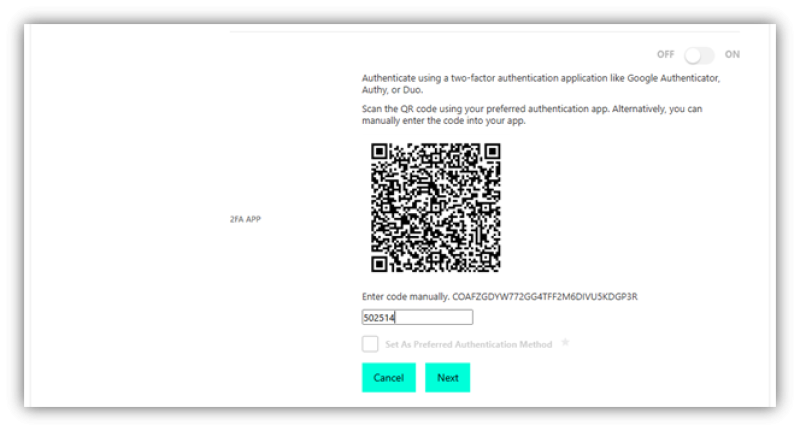
Once the code has been entered, you may set the Authenticator as you preferred method for verification or simply click Done.
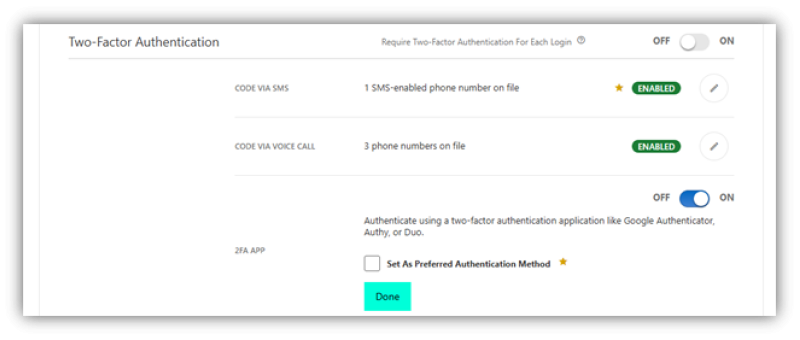
The page will refresh to reflect the service as enabled.